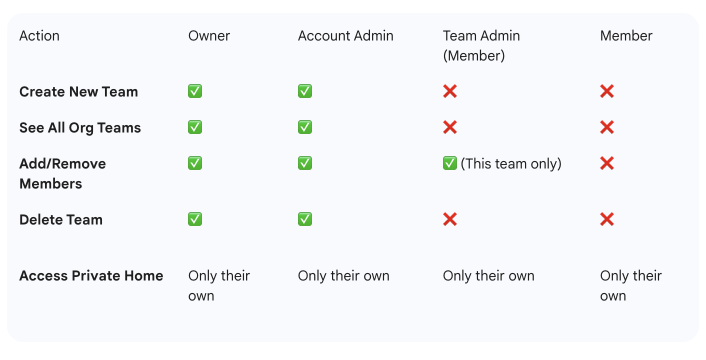
Each Mindmup account can include multiple members, depending on your plan. For example, if your Team plan includes 5 seats, you can add up to 5 members. Every member has their own login, profile, and personal settings.
Account Roles
Each account member has one of the following roles:
- Owner – Has full control over the Workspace. Can manage billing, add or remove members, assign roles, and create or delete teams.
- Account Admin – Can manage Workspace members and teams, including adding or removing seats and updating member roles. Cannot access billing information.
- Member – Has a personal Mindmup account but cannot manage other members, teams or Workspace settings.
Team Roles
Teams are groups of members who collaborate on maps. When you add a member to a team, you assign a specific team-level permission:
- Can view – Can view all maps within a team but not edit them.
- Can edit – Can view and edit all maps within a team.
- Team Admin – Can manage the team’s members, roles, and maps, but not the overall account.
Sharing Maps with Teams
When you share a personal map with an entire team, each team member automatically inherits their access level from their team role.
For example, if a map is shared with a team of five people where one is a team Admin, one has Can edit permission, and the remaining three have Can view permissions, only the Admin and the Can edit member will be able to modify the map. The other three members will have view-only access.
In short, your team role determines your permissions for maps shared with the team or created within it.
Summary
- Account roles control access to the overall organization.
- Team roles control access within a specific team.
- A user’s account role and team role can differ — for example, a Member at the account level can still be an Admin within a specific team.
- When a map is shared with a team, access is automatically based on each member’s team role.