Use Custom Images as Map Backgrounds
You can make your maps more personal by using custom images as backgrounds. This is a great way to visually convey the theme of a map—for example, adding a space image for an astronomy map—or to associate a map with your brand by including company images in the background.
How to add a custom background image
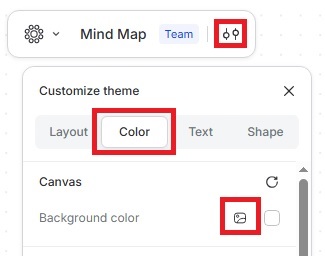
- Click the Customize theme icon
- Go to Color › Canvas › Background color
- Click the Picture icon to upload your image
- Select a file from your device to upload to Mindmup
The uploaded image will appear as the map background. For best results, use images that can be repeated seamlessly, like tiles.
Currently, this feature is available only for maps saved to Mindmup. Maps stored to Google Drive do not support custom background images yet, but this restriction may be removed in the future.