Change Node Border Color and Thickness in Mindmup
You can quickly customize node borders in Mindmup to make your maps clearer and more visually organized.
Highlight Important Nodes
Border styling is a simple way to emphasize key ideas or group related nodes. Adjusting border color, thickness, or shape helps important parts of your map stand out without clutter.
Change Border Color Using the Quick Menu
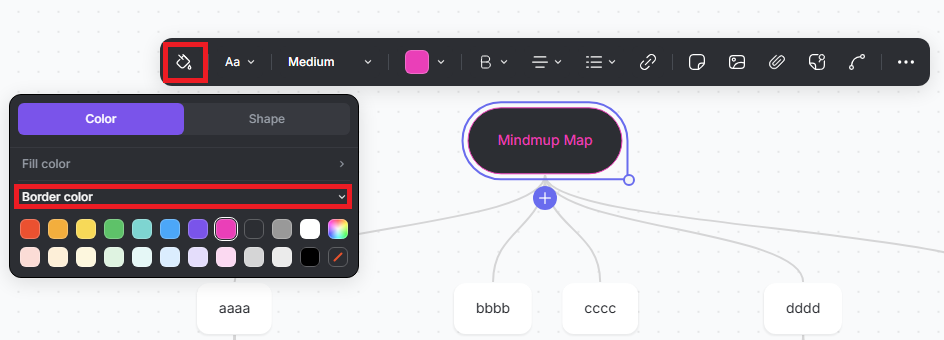
When you click a node, a quick menu appears at the top.
- Click the Paint icon
- Click Fill Color to change the node’s background color
- Click Border Color to change the border color
This lets you adjust colors in just a few clicks, without opening extra menus.
Adjust Border Thickness and Shape
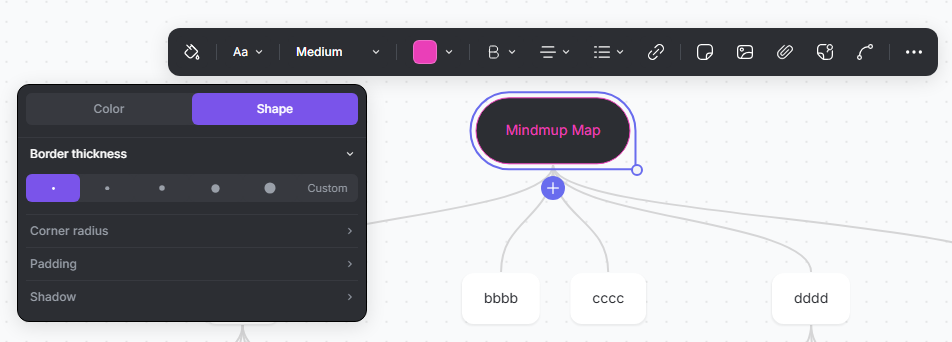
To fine-tune how your node looks:
- Click Shape
- Adjust Border Thickness
- Modify Corner Radius
- Change Padding
- Add or remove Shadow
These options give you more control over spacing and visual weight, making your map easier to scan and understand.
Learn More
For step-by-step instructions, see the tutorial on how to change node border thickness or color.