Customize colors by map level in Mindmup
Many mind mappers use color to visually separate levels in a map. Mindmup has always made it easy to select a level and apply a color, and you can now automatically customize colors for each map level.
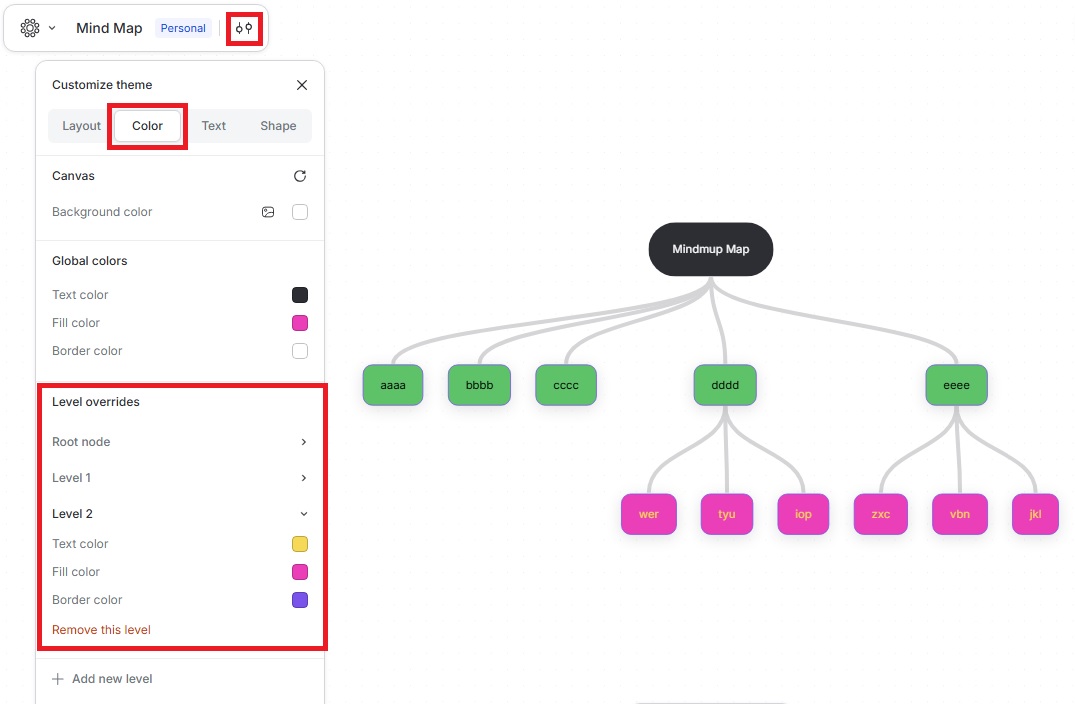
How to access level color overrides
To customize colors by level:
- Click the Customize theme icon in the top-left menu.
- Go to Color › Level overrides.
- From there, you can customize each level of the map, including:
- The root node
- Level 1
- Level 2
- Additional levels as needed
For each level, you can adjust the text color, fill color, and border color.
How it works
Level color overrides apply automatically across the map, helping keep large or complex maps visually consistent. Changes update instantly and work with all visual themes.
You can still override colors on individual nodes when needed, using the usual node-level color tools.