Disabling “share with all” in organization and team accounts
You can control whether users are allowed to share maps with everyone in an organization or team account at once.
Previously, members of an organization or team could share maps with all members using the automatic “share with all” option. This setting can now be disabled to give administrators more control over internal sharing.
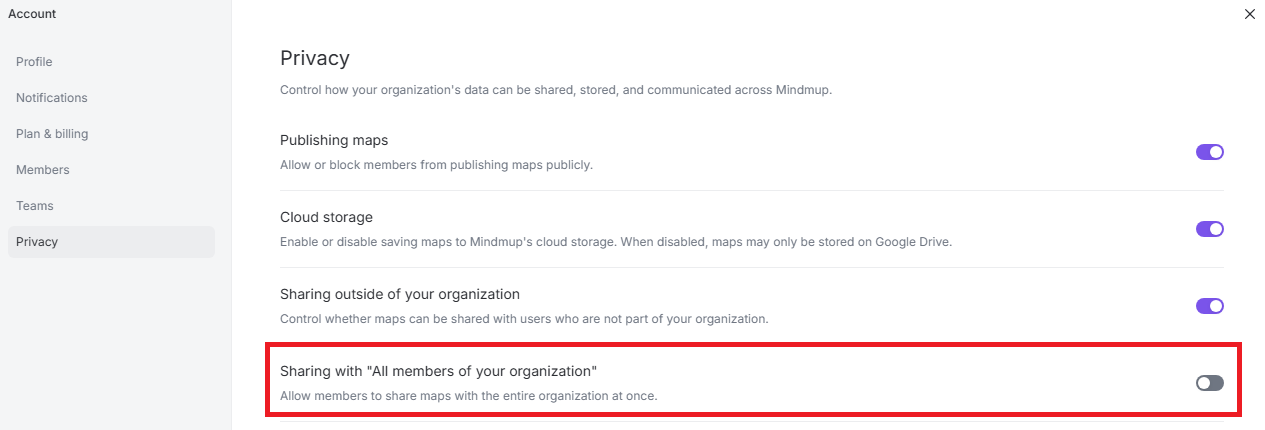
How to disable sharing with all members
- Open the Account tab.
- Go to Privacy.
- Toggle off Sharing with "All members of your organization".
When this option is turned off, users will no longer be able to share maps with the entire organization in one step.
Re-enabling the option
To allow sharing with all members again, return to Privacy and toggle Sharing with "All members of your organization" back on.
If you have questions about organization or team sharing controls, contact us at contact@mindmup.com.