Customizing Node Colors in Mindmup
You can easily set default text and background colors for your Mindmup map nodes. This includes global colors for all nodes, as well as color settings by level, so you can control the look and structure of your map.
How to Change Node Colors
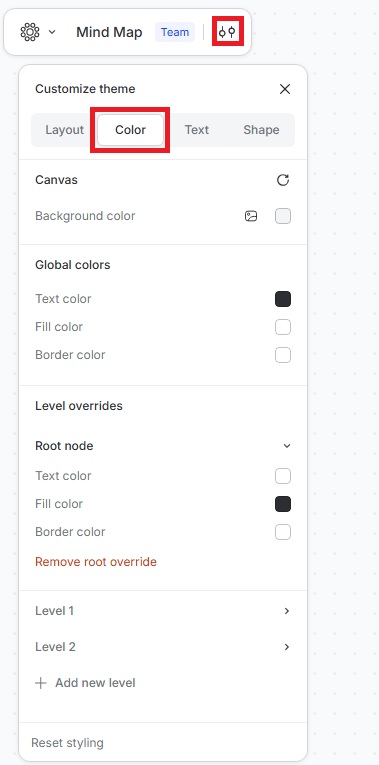
To change node colors, click the Customize theme icon. This opens the theme customization options in the sidebar.
From here, you can adjust:
- Canvas background color
- Global colors
- Level overrides
Global Colors
Use the color picker to change the text color, fill color, and border color. Changes made here apply to all nodes—unless a level override is set.
Colors by Level
Map themes can also include overrides for the first five levels. These level-specific settings take precedence over the global colors.
You can change them in the Level overrides section. This is useful when you want certain levels to stand out or follow a specific visual hierarchy.