Adding and managing notes in Mindmup
Quick text notes and comments are a great way to capture additional context in your mind map, such as presenter notes, instructions for teammates, research ideas, or text for a larger document. Mindmup makes it easy to add notes and later export them to Word or Markdown documents.
Add notes to a node
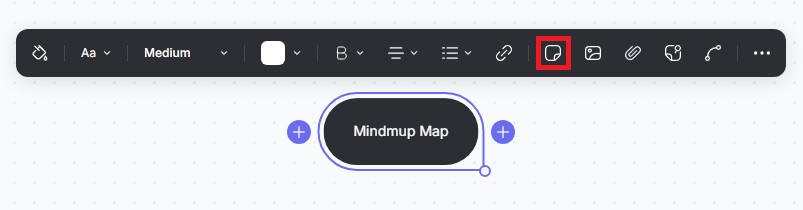
To add notes to any node:
- Press the N key, or
- Click the node to open the quick menu, then click the Notes icon.
Show and close notes
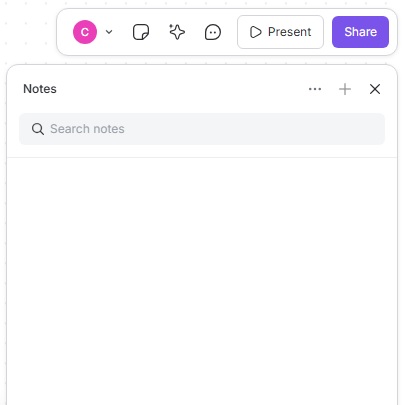
- To view notes, click the Notes icon in the top-right menu.
- To close the notes sidebar, click X (Close sidebar) or press Esc.
Export notes
You can export notes from your map into a text document to continue editing in your preferred text editor:
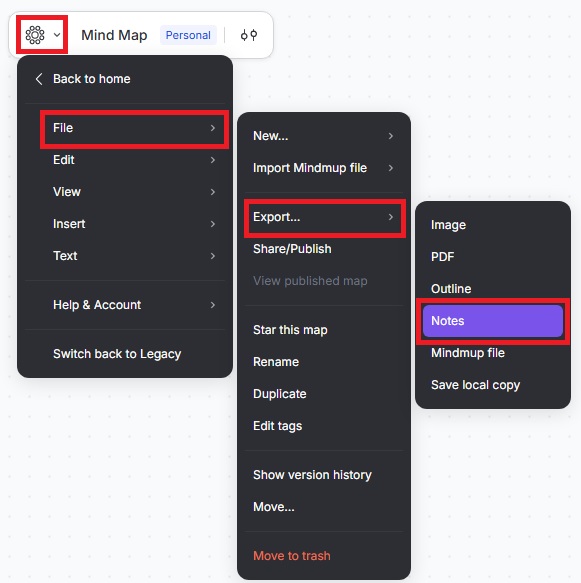
- Click the Mindmup icon, Select File › Export › Notes to create a document with all notes, optionally including the titles of the nodes containing them.
- To export the entire map outline with notes, click the Mindmup icon, select File › Export › Outline and tick the Include text notes checkbox.
Starter users can export maps up to 100 KB. Personal, Team, and Organization users can export maps up to 100 MB online, and larger files offline.