Using Colors More Consistently in Mindmup
Mindmup makes it easy to keep your maps visually consistent by reusing colors that are already in your map. The updated color picker helps you apply the same colors quickly—no guessing, no manual matching.
Reusing Colors Already in Your Map
When you change a color on a node, Mindmup automatically highlights colors that are already used in the current map.
- Click a node.
- Use the quick menu to open the color options.
- Select a color from the ones already used in the map.
This keeps your map clean and consistent, especially as it grows.
Changing Colors for the Whole Map
You can update the background and global colors for the entire map in one place.
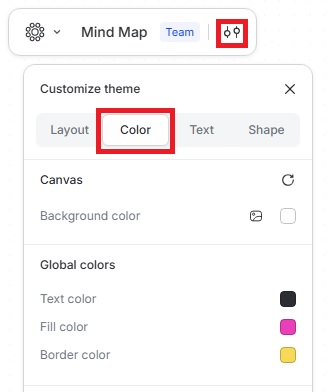
- Click the Customize theme icon.
- Go to Color.
- Change the Canvas Background Color.
- Use Global Colors to set default Text, Fill, and Border colors.
These changes apply across the whole map, making it easy to refresh the overall look.
Changing Colors for a Single Node
If you only want to adjust one node, you have a couple of quick options.
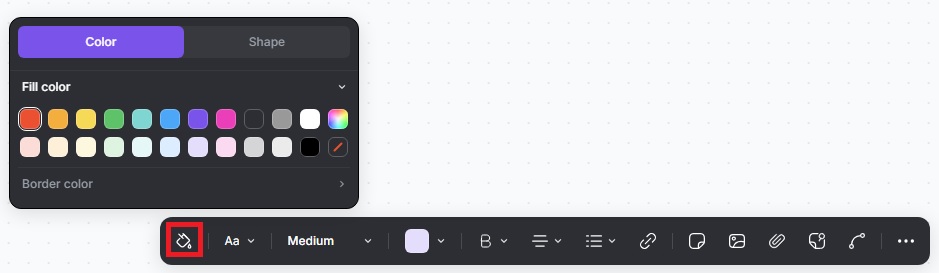
- Click the node to open the quick menu.
- Click the Paint icon to change the Fill Color and Border Color.
You can also change the font color of a node to highlight or differentiate its text.
- Click the Font Color icon to change the text color only.
Both options let you fine-tune individual nodes without affecting the rest of the map.
