Private map sharing in Mindmup
Mindmup lets you share maps privately with specific people, keeping your work secure and under your control.
How to share a map privately
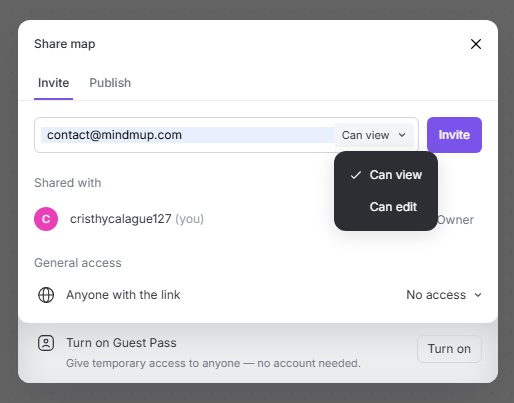
To invite others to your map:
- Click the Mindmup icon in the top-left corner of the map.
- Go to File › Share/Publish.
- Enter the email address of the person you want to invite.
- Choose their permission level: Can view or Can edit.
- Click Invite.
What invited users can do
People you invite must sign in to access the map. Depending on the permission you choose, they can either view the map or collaborate by editing it.
This makes it easy to share maps privately in Mindmup without making them public or relying on Google Drive.
Why this matters
From the start, Mindmup made it easy to share maps stored in Google Drive. Outside the Google ecosystem, though, Mindmup was mainly used for individual work.
Private sharing is an important step toward better collaboration for maps stored directly in Mindmup. It’s designed for people who don’t want to, or can’t, save their maps to Google Drive—and it lays the groundwork for more collaboration features going forward.