Reset Custom Styling in Mindmup
You can reset the look and feel of your maps back to the default style in just a few clicks. Custom colors, fonts, and line styles can help highlight ideas, but if a map starts to feel cluttered, it’s easy to start fresh.
Reset Styling for a Single Node
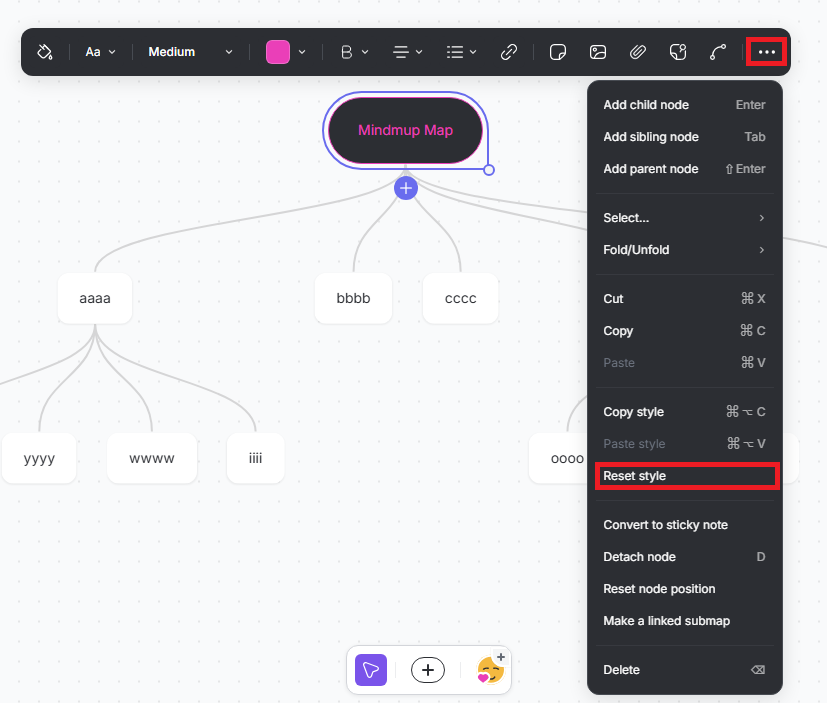
To remove custom styling from an individual node:
- Click the node to open the quick menu
- Click the Three-dot icon
- Select Reset Style
This restores the node to the default style for your current theme.
Reset Styling for the Entire Map
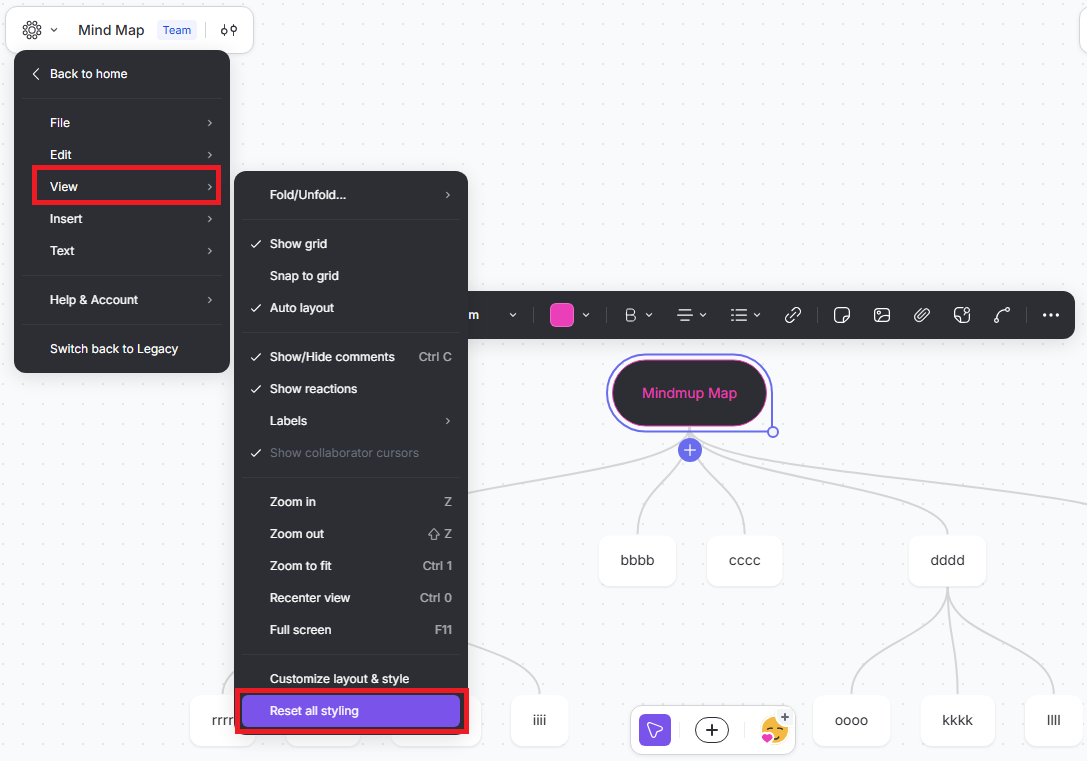
To remove all custom styling across the whole map:
- Click the Mindmup icon in the top-right corner of your map
- Go to View › Reset All Styling
The map will return to the standard look and feel for the selected theme.
Re-style Anytime
Once styling is reset, you can reapply visual changes selectively and keep your map clean, consistent, and easy to read.