Customizing Node Borders in Mindmup
You can quickly configure node border styling for your entire map using the Mindmup theme editor. This gives you control over both border color and thickness, either globally or per level.
Changing Border Color
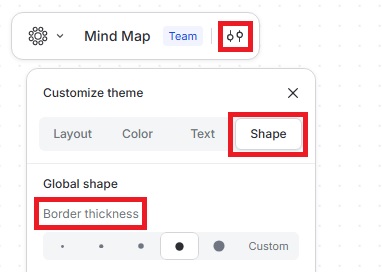
- Click the Customize theme icon.
- Go to Color › Global colors › Border color.
- Choose a color from the color picker.
You can also customize border colors for individual levels in Level overrides.
Changing Border Thickness
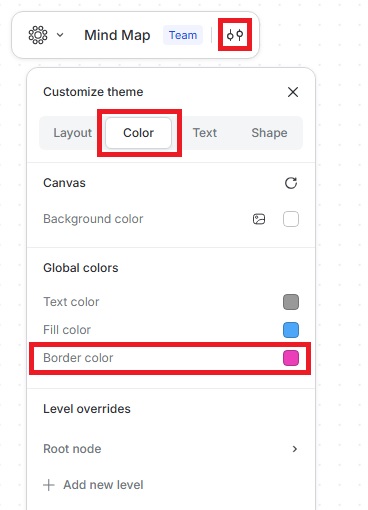
- Click the Customize theme icon.
- Go to Global shape › Border thickness.
- Choose the thickness to your preference.
These settings help keep your map visually consistent and easy to read, whether you’re styling all nodes at once or fine-tuning specific levels.