Guest Pass: Invite Anyone to Collaborate
Guest Pass lets you invite people to collaborate on a map without requiring them to create an account or sign in. Just turn it on, share the link, and collaborators can join instantly with temporary access.
Guest Pass is ideal for:
- Quick brainstorming sessions
- Online workshops
- Classroom collaboration
- Working with people outside your organization
Anyone with the link can join, and no Mindmup account is required.
How Guest Pass Works
Guest Pass gives temporary access to a map. You control when access is available, what participants can do, and when the link is turned off.
Maps shared via Guest Pass update in real time as you edit them.
How to Turn On Guest Pass
To enable Guest Pass for a map:
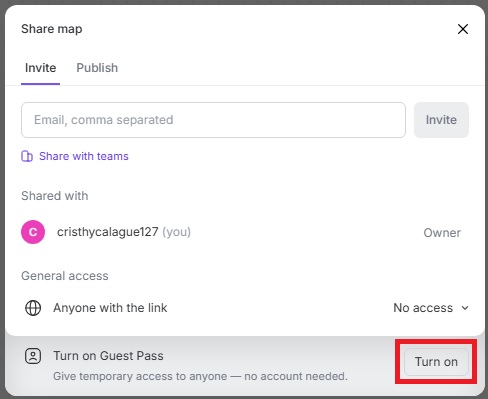
- Click Share in the top-right corner while editing the map.
- Click Turn on Guest Pass.
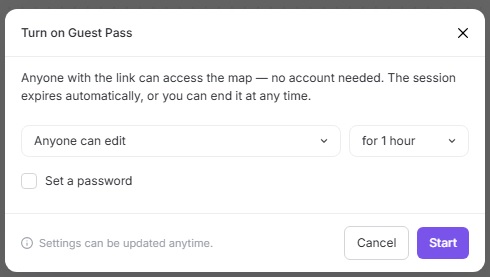
Once enabled, copy the link and share it via email, chat, or messaging apps. Choose Anyone can view or Anyone can edit, set the session to expire automatically, or end access at any time.
Updating or Turning Off Guest Pass
You can manage Guest Pass access at any time:
- Click Share in the top-right corner of your map.
- Click Turn on Guest Pass.
- Adjust Guest Pass settings as needed, or turn it off to revoke access immediately.
Changes apply instantly.
Guest Pass vs. Other Sharing Options
Guest Pass is designed for temporary, low-friction collaboration.
- Unlike sharing with specific users, Guest Pass does not require an account or sign-in.
- Unlike published maps, Guest Pass allows real-time editing (if enabled).
- Guest Pass links update automatically as the map changes.
This makes Guest Pass a better fit for live sessions and short-term collaboration.
Availability and Limits
Guest Pass is available on supported Mindmup plans. It provides temporary access only and does not require add-ins or additional purchases.
Starter maps remain private by default and are limited to up to five editable maps.
Admin Controls
Organization administrators can manage or restrict Guest Pass usage by adjusting external sharing settings for their organization.
Need Help?
If you have questions about Guest Pass or sharing options, contact us at contact@mindmup.com.