Adding Links to Mindmup Nodes
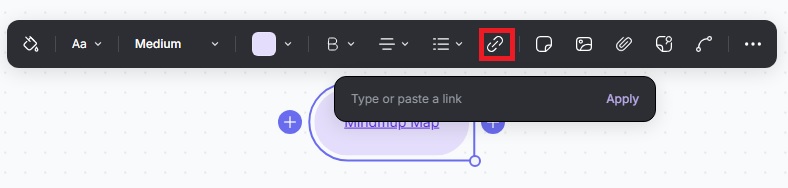
You can easily add hyperlinks to map nodes, connecting your maps to external websites or linking between maps. This is useful for creating an overview map with broad topics, then linking individual nodes to more detailed maps.
Adding Links to Nodes
- Paste a URL directly into the text of a node.
- The node will display a clickable link widget.
- Mindmup shows the beginning of the URL in the node.
- Clicking the link opens the target URL in a new browser tab.
Example: Typing https://www.google.com into a node will create a clickable link.
2. Add descriptive text if you don’t want the URL to appear.
When a node contains both text and a URL, Mindmup hides the URL and displays your text as a clickable link.
Example: Typing Search using Google https://www.google.com will display the node as “Search using Google” with the link embedded.
Cross-Linking Maps
Each Mindmup map has a unique URL. To link maps:
- Copy the map URL from the browser address bar.
- Paste it into a node in another map.
- Optionally, add descriptive text for the map instead of showing the raw URL.
This lets you create a network of connected maps for easy navigation between related topics.