Using Mindmup: A Complete Guide to Maps
Mindmup lets you create, edit, and share maps efficiently. This guide covers the most common map operations with the updated Mindmup app.
Signing into Mindmup
The easiest way to access your maps is at https://app.mindmup.com. Bookmark this as your Mindmup landing page for quick access.
Alternatively, you can go to https://www.mindmup.com, click Get Started, select Mindmup as your storage option, then choose Create a new map or Open an existing map.
Creating a New Map
To create a new map:
- Go to https://app.mindmup.com and sign in to your Mindmup account.
- Click New map.
You can also create a new map while editing another map by clicking File › New from the main menu.
Opening Existing Maps
To open an existing map:
- Go to https://app.mindmup.com and sign in.
- Click Open from Mindmup.
Alternatively, bookmark https://app.mindmup.com/files.html for direct access.
Your Home shows all your maps with previews for easy identification. Use the toolbar or main menu to customize the view, switch between personal or shared maps, filter by tags, or change the sorting order.

Creating Copies of Maps
To duplicate a map:
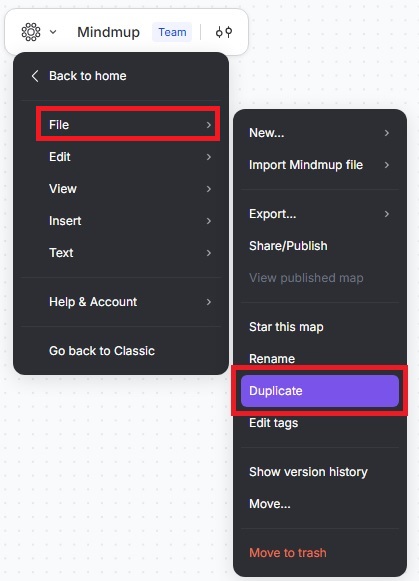
- While editing, click File › Duplicate.
This creates a copy of the content but not the history. Use this to share results without revealing previous edits.
Restoring Old Versions from History
Mindmup keeps a history of changes for every map. You can see how your map evolved and restore earlier versions if needed.
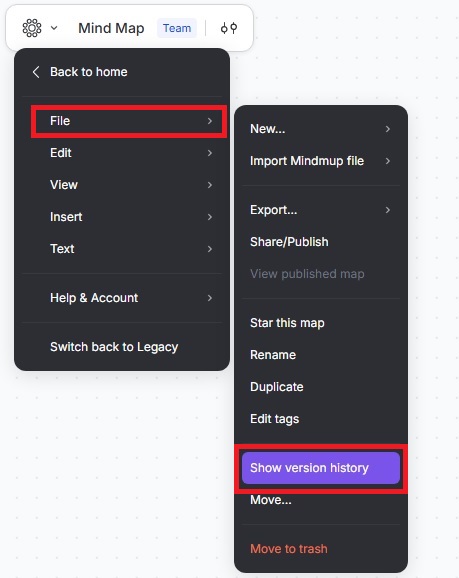
- Click File › Show version history to view a list of changes in the sidebar.
- Double-click an entry to open the interactive history explorer and see the map at that point in time.
- Click any event in the sidebar to navigate through changes.
- To save a historical version as a new map, click the three dots and select Save as new map or use File › Duplicate.
- To restore a previous version directly, click the three dots and select Restore this version.
Sharing Maps
To share a map:
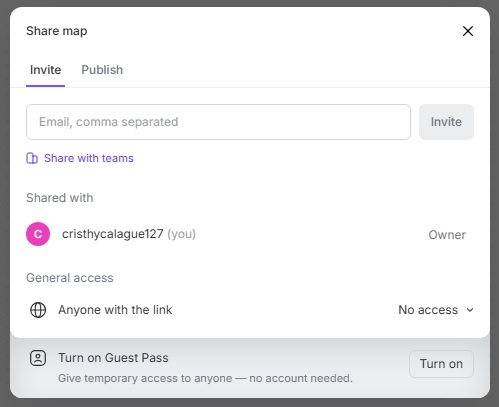
- Click Share in the top-right corner while editing, or go to File › Share/Publish from the menu.
- Enter the email addresses of the people you want to share with.
- Select Can view or Can edit to set the level of access.
Shared maps appear under the Shared with me in your Home, and you can revoke access anytime by reopening the sharing dialog and clicking the trash icon next to a person’s email.
You can also Turn on Guest Pass to share a map with anyone via a link.
Team and organization admins can manage sharing permissions for individuals or groups to control who has access.
Working with Team Maps
You can share maps with teams or your entire organization:
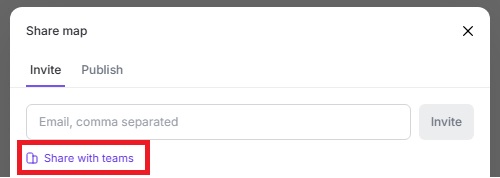
- Click Share in the top-right menu, then select Share with teams › All members of your organization, or choose the specific teams you want to share the map with.
Find team maps under the Team tab in your Home. Admins can create subgroups for projects or classes, and share maps with these teams via Share with teams.
Deleting and Restoring Maps
To delete a map:
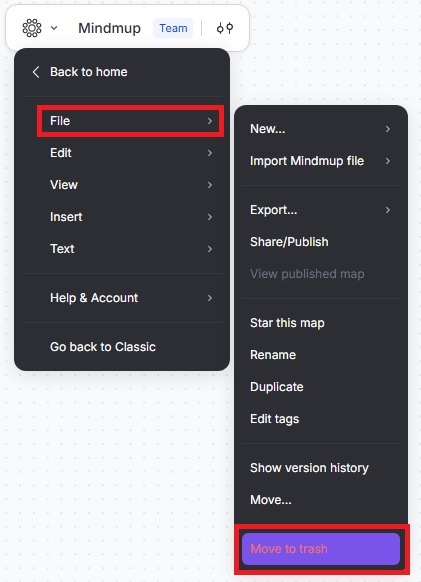
- Click File › Move to trash while editing.
Trashed maps no longer appear in your Home or remain editable by collaborators. To restore:
- Open Home and click the Trash tab.
- Click the three dots next to the map and select Restore.
Maps remain in Trash for one month before permanent deletion.
Importing Files from Google Drive
To move maps from Google Drive:
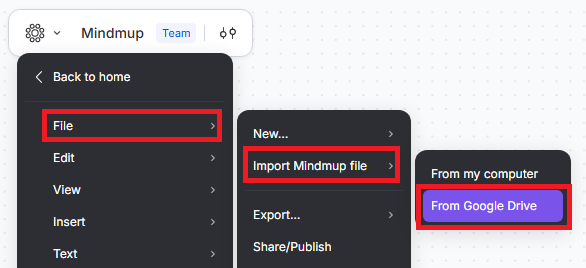
- From the main menu, click File › Import Mindmup file › From Google Drive.
Select a Google account and choose files to import. Multiple files can be imported at once.
Confirm your selection. Mindmup will import embedded images and move them from Google Photos to Mindmup storage.
Other Drive attachments remain on Google Drive, and imported maps are not automatically shared with previous collaborators.
Need Help?
For questions or support, contact us at contact@mindmup.com.