Team Account Guide
What is the Team account?
A Mindmup Team account is designed for small groups who want to collaborate and share maps easily. It allows teams to remove size restrictions, enable collaborative editing, and manage private sharing. Each user has a separate username and password, while the team enjoys consolidated billing.
Users can keep private maps, share maps individually, or move maps to Team Maps for everyone to access. Team administrators can also restrict sharing outside the team, similar to an Organization account.
Unlike Organization accounts, Team accounts don’t require third-party account management systems like GSuite or Office 365. You can manage users directly from your account and even invite people outside your organization.
How much does a Team account cost?
Mindmup Team is billed monthly based on the number of seats:
- 5 seats: $36 per month
- 10 seats: $65 per month
- 20 seats: $120 per month
You can adjust the number of seats as your team grows.
How to register for a Team account
Sign up directly at Mindmup and select the Team plan. You can start with the number of seats you need and upgrade later if your team grows.
How to add users to your account
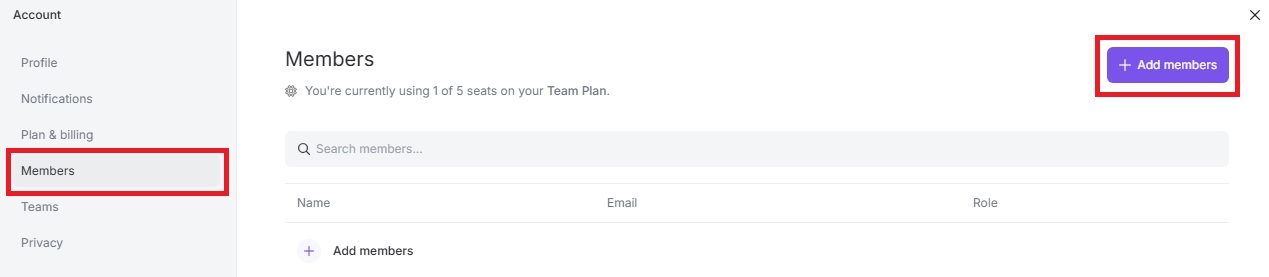
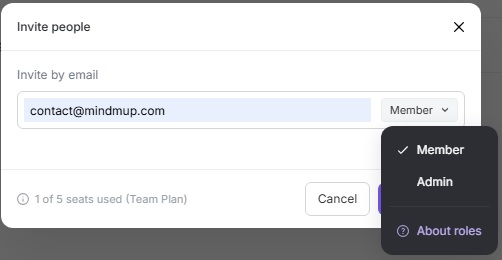
- Click the Mindmup icon › Help & Account › Members › Add Members.
- Enter the user’s email, choose Member or Admin, and click Send Invite.
- The user will receive an email to confirm their invitation. Once confirmed, they’ll appear in your members list.
How to remove users from your account
Click the 3 dots next to the user’s email and select Remove User.
How to upgrade an existing personal account
If you have an active Personal subscription, go to your account admin page and click Change to Team. Your subscription cost will be pro-rated based on any unused Personal subscription time.
If you don’t have an active subscription, contact contact@mindmup.com for assistance.
How to share maps
Maps can be shared individually or added to Team Maps for everyone to access. For detailed guidance on sharing and managing maps, see the Using Mindmup tutorial.
How to restrict sharing
Team administrators can restrict maps from being shared outside the team or prevent members from publishing them. For more details, check the Manage Sharing Groups tutorial.